-remove-bg-io.webp)
.webp)
On this page
Changing Your Password
Go to Account → Change Password, enter your current password and a new one (at least 8 characters, ideally combining upper/lowercase letters and numbers), then confirm.
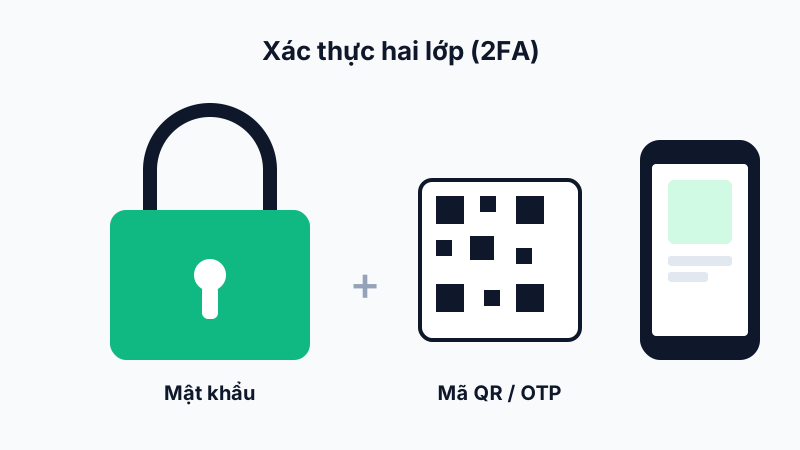
Enabling Two-Factor Authentication (2FA)
In Account → Security, turn on 2FA and follow the instructions to scan the QR code with an authenticator app. From your next login onward, you'll need to enter an OTP in addition to your password.
Updating Your Salary Bank Account
Go to Account → Bank Account to enter/edit your account number, bank name, and branch so HR pays your salary to the correct account each pay period.
Switching Light/Dark Mode
In Account → Appearance, choose Light, Dark, or match your device's system setting based on your preference.
Note: If you change your bank account close to payday, notify HR to ensure the information is updated in time before payroll is locked.