-remove-bg-io.webp)
.webp)
Step 1: Consolidate Attendance Data
Go to Payroll → Run Monthly Payroll and select the pay period. The system automatically pulls data from the timesheet (actual days worked, lateness, early leave, overtime) and approved leave data for the period.
Step 2: Apply the Pay Formula
The system calculates pay based on base salary, allowances, and deductions (insurance, personal income tax, etc.) according to the configuration set for each employee or job title.
Step 3: Review and Adjust
Before locking payroll, HR should review the draft, reconcile unusual cases (e.g. an employee on multiple days of unpaid leave), and make manual adjustments if needed.
Step 4: Lock Payroll and Send Pay Slips
Once the figures are confirmed accurate, tap Lock Payroll to finalize the numbers (they can no longer be edited directly after this step), then tap Send Pay Slips so each employee receives their personal pay slip on the mobile app.
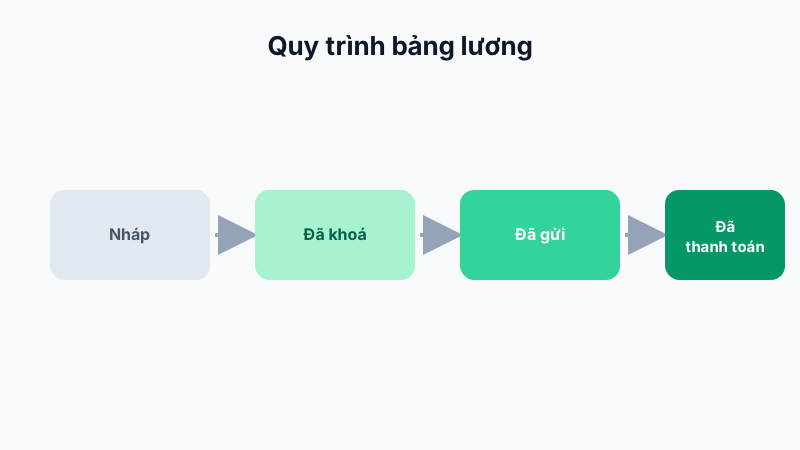
Note: Payroll status follows the sequence Draft → Locked → Sent → Confirmed/Paid. It cannot revert to Draft once locked — if an error is found, create a separate adjustment or handle it in the next pay period.