-remove-bg-io.webp)
.webp)
On this page
Creating a Shift
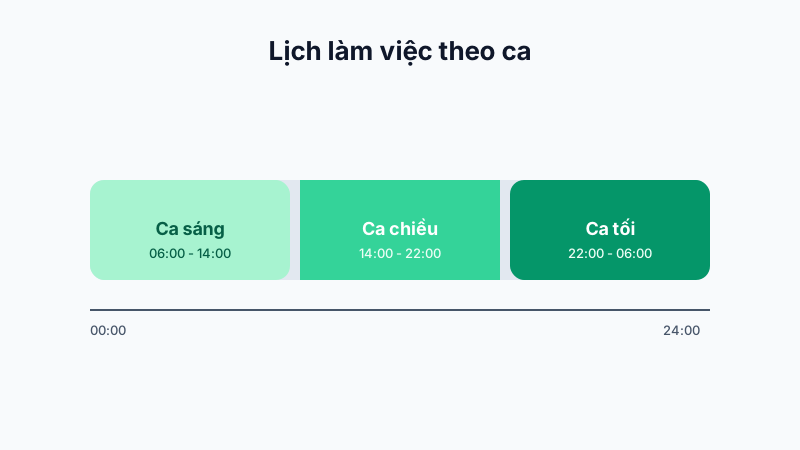
Go to Work Oversight → Shifts & Schedule, tap Add Shift, and enter: shift name (e.g. "Morning Shift"), start time, end time, break duration, and the threshold for counting lateness/early leave.
Building a Work Schedule
Once shifts exist, you can assign a shift to each employee for each day of the monthly calendar by dragging and dropping or selecting from a dropdown.
Bulk Schedule Import
- Tap Import from Excel and download the template provided by the system.
- Fill in the employee ID, work date, and corresponding shift code in the file.
- Upload the completed file, review the preview, and confirm the import.
This is especially useful when scheduling an entire month for hundreds of employees at once, avoiding manual row-by-row work.
Note: If an employee has multiple shifts on the same day (multi-shift day), declare each shift on a separate row in the Excel file with the same date and employee ID.