-remove-bg-io.webp)
.webp)
On this page
Preparation
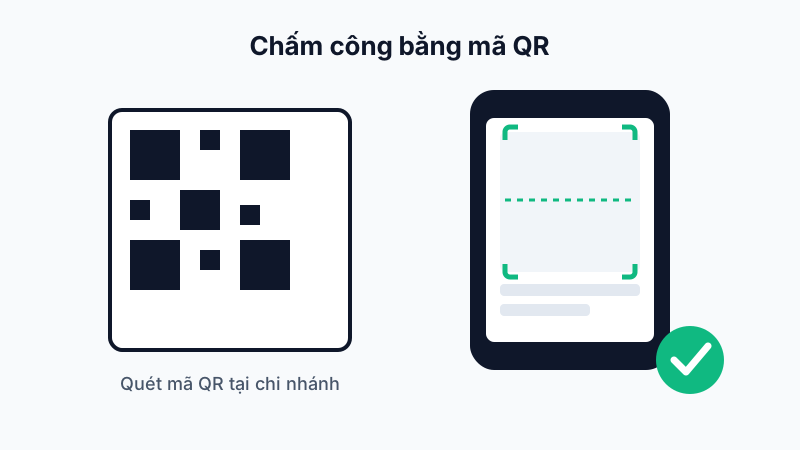
The branch manager generates a time-limited attendance QR code from the Attendance Status screen on the web dashboard, then prints or displays it at a fixed location in the branch (reception desk, entrance, etc.).
Check-In Steps
- Open the mobile app and go to the Work → Check In tab.
- Tap the QR scan button and point your camera at the QR code posted at the branch.
- If scanning fails, select Enter Code Manually and type the code shown below the QR image.
- The system checks your current GPS location against the branch's allowed radius, and if valid, records your check-in successfully.
Important Note
The QR code is only valid for a period set by the manager (e.g. 12 hours or per shift); an expired code can no longer be scanned and requires the manager to generate a new one.
If you're outside the branch's allowed GPS radius, the system will show an "Out of allowed range" error and won't accept the check-in — move into the correct branch area before trying again.