-remove-bg-io.webp)
.webp)
First-Time Login
Step 1: Go to the web dashboard URL provided by your company and enter your email/phone number along with the provided password.
Step 2: If this is your first login, the system will require you to change the default password to a strong personal password (at least 8 characters, with uppercase letters and numbers).
Enabling Two-Factor Authentication (2FA)
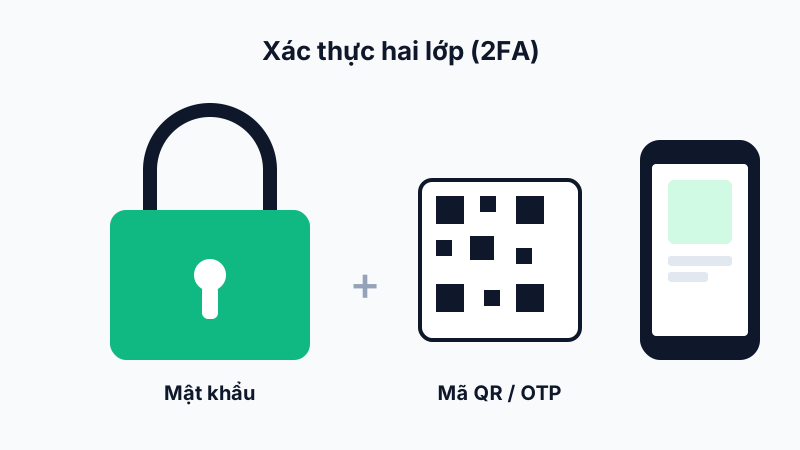
Go to Personal Account → Security and enable the 2FA option. The system will display a QR code to scan with an authenticator app (Google Authenticator, Authy, etc.). After scanning, enter the 6-digit code shown to confirm activation.
From your next login onward, you'll need to enter an OTP code from the authenticator app in addition to your password to access the system.
Forgot Password
On the login screen, select Forgot Password and enter your registered email to receive a password reset link. The link is valid for a limited time, so please reset your password as soon as you receive the email.
Note: 2FA should be enabled for every business owner or HR account, since these accounts have access to sensitive payroll and HR data.