-remove-bg-io.webp)
.webp)
Sending Pay Slips (for HR)
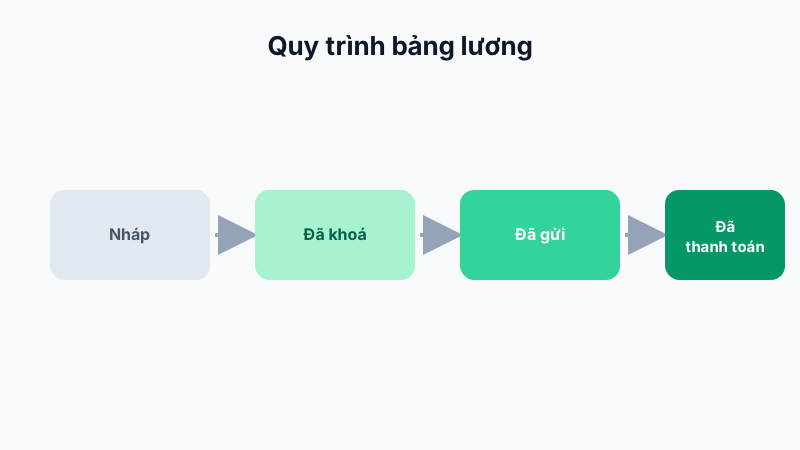
After payroll has been locked, go to Payroll → Send Pay Slips, select the pay period, and tap Send All. The system will push a notification to each employee and show the detailed pay slip on their mobile app.
Viewing a Pay Slip (for Employees)
- Open the mobile app and go to Work → Payroll.
- Select the pay period to view — the pay slip shows details: base salary, allowances, deductions, actual days worked, and net pay.
- If you have questions, you can open a support ticket right in the Account section to ask HR.
Payroll Data Security
Each employee can only view their own pay slip; branch managers can only see their team's aggregate payroll (not individual line items) unless granted additional HR permissions.
Note: Pay slips only appear in the app after HR sends them — a "Locked" but not-yet-sent payroll will not be visible to employees.